Privacy is one of the main reasons users switch to modded apps like GB Instagram. While the standard Instagram app offers limited controls, GB Instagram provides advanced options to hide chats, lock direct messages, and protect conversations with a PIN, pattern, or fingerprint.
If you share your phone or simply want to keep certain conversations private, knowing how to hide chat in GB Instagram is essential. This guide covers the latest working methods in 2026.
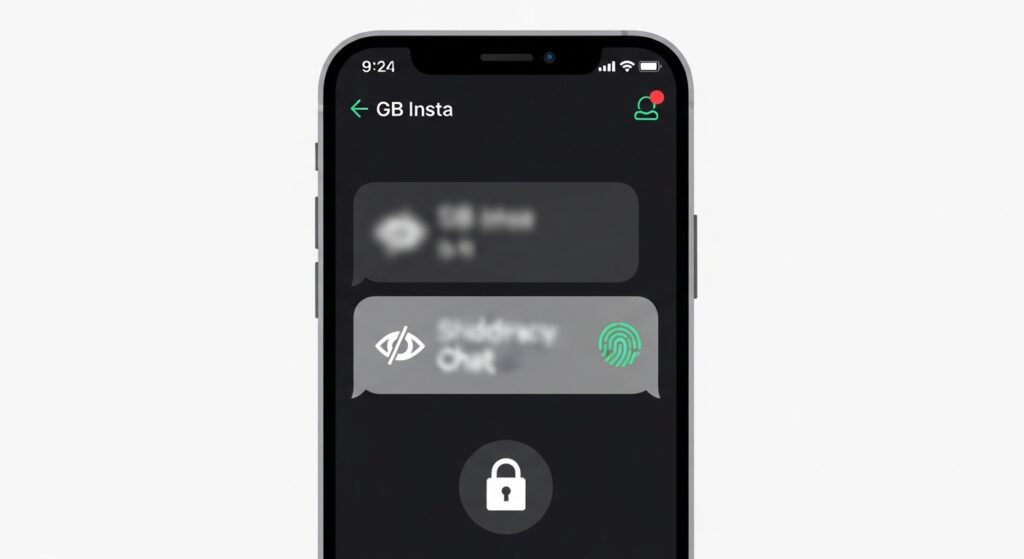
Hide Chat in GB Instagram Using Chat Lock
The easiest and most secure way to hide a conversation is by using the built-in GB Instagram chat lock feature. This hides the chat from your inbox without deleting messages.
Steps:
- Open Direct Messages in GB Instagram.
- Long-press the chat you want to hide.
- Tap Hide Chat or Lock Chat.
- Set a PIN, pattern, or fingerprint for protection.
Once enabled, the conversation disappears from your main inbox and can only be accessed after authentication.
Hide Instagram Chats from GB Settings
You can also manage hidden chats directly from the GB Instagram privacy menu. This method is useful if you want to configure lock behavior before selecting chats.
Steps:
- Open your Profile and tap the menu icon.
- Select GB Settings.
- Go to Privacy & Security or Chat Screen.
- Enable Chat Lock / DM Lock.
- Manage or select chats you want to hide.
Using GB Instagram privacy settings ensures consistent protection across all locked conversations.
Archive Chats in GB Instagram (Alternative Method)
If you only want to remove chats from view without locking them, archiving is a simple alternative.
Steps:
- Long-press the chat.
- Tap Archive.
- The chat is removed from the inbox but not deleted.
Note: Archived chats are not password-protected and can reappear when you receive a new message.
How to View Hidden Chats in GB Instagram
Accessing locked or hidden chats is quick and secure.
Steps:
- Open Direct Messages.
- Tap the hidden chats area (eye icon, header text, or three-dot menu, depending on version).
- Enter your PIN, pattern, or fingerprint.
You will now see all your hidden chats in GB Instagram.
How to Unhide Chats in GB Instagram
When you no longer need privacy on a conversation, you can restore it to your inbox.
Steps:
- Open the hidden chats section.
- Long-press the chat.
- Tap Unhide or Remove Chat Lock.
The chat will immediately return to your main DM list.
Hide Chat Notifications in GB Instagram
Even hidden chats can expose your privacy through notifications. GB Instagram allows you to control notification previews for locked messages.
Steps:
- Go to GB Settings.
- Open Notifications.
- Disable message previews for locked chats.
- Optionally hide sender name and message content.
This prevents sensitive messages from appearing on your lock screen.
Common Problems and Fixes
Hide Chat Option Not Showing
- Update GB Instagram to the latest version.
- Check GB Settings > Privacy to ensure chat lock is enabled.
Forgot Chat Lock PIN
- Try resetting it from GB Settings > Privacy & Security.
- Use Reset Preferences if available.
- As a last resort, reinstall the app (may result in data loss if chats aren’t backed up).